
UI/UX Animation
Animation can enhance user interface design by making digital interactions feel more responsive and engaging. UI animation is often subtle, but it plays an important role in helping users understand what is happening on screen. Through this week’s reading and research, I learned how motion can guide attention, clarify steps, and improve the overall user experience.
Reading
In Chapter 10 of Animated Storytelling, Blazer focuses on turning all your planning into actual animation. She explains that even when storyboards, sound, and design are prepared, bringing everything together in motion can still feel overwhelming. One of the key ideas discussed is creating a production calendar. Blazer explains that planning deadlines and working backwards from the final deadline can help keep a project manageable. The chapter also highlights the importance of protecting files, staying organized, and backing up work regularly to avoid losing progress.
Another point I found helpful was the advice to start with the easier scenes first rather than jumping into the most complicated ones. Blazer describes this as animating the “lowest-hanging fruit” to build confidence and momentum before tackling more difficult sequences. I hadn’t really thought about approaching projects that way before.
Finally, the chapter discusses how composition, movement direction, shot length, and timing influence how an audience experiences a scene. Mixing up shot sizes, pacing, and directional movement helps keep the animation visually engaging and emotionally effective. Blazer also explains the relationship between sound and animation, encouraging creators to stay flexible with their soundtrack and ensure the visuals are strong even without audio.
Research to Inform
Click to view all.
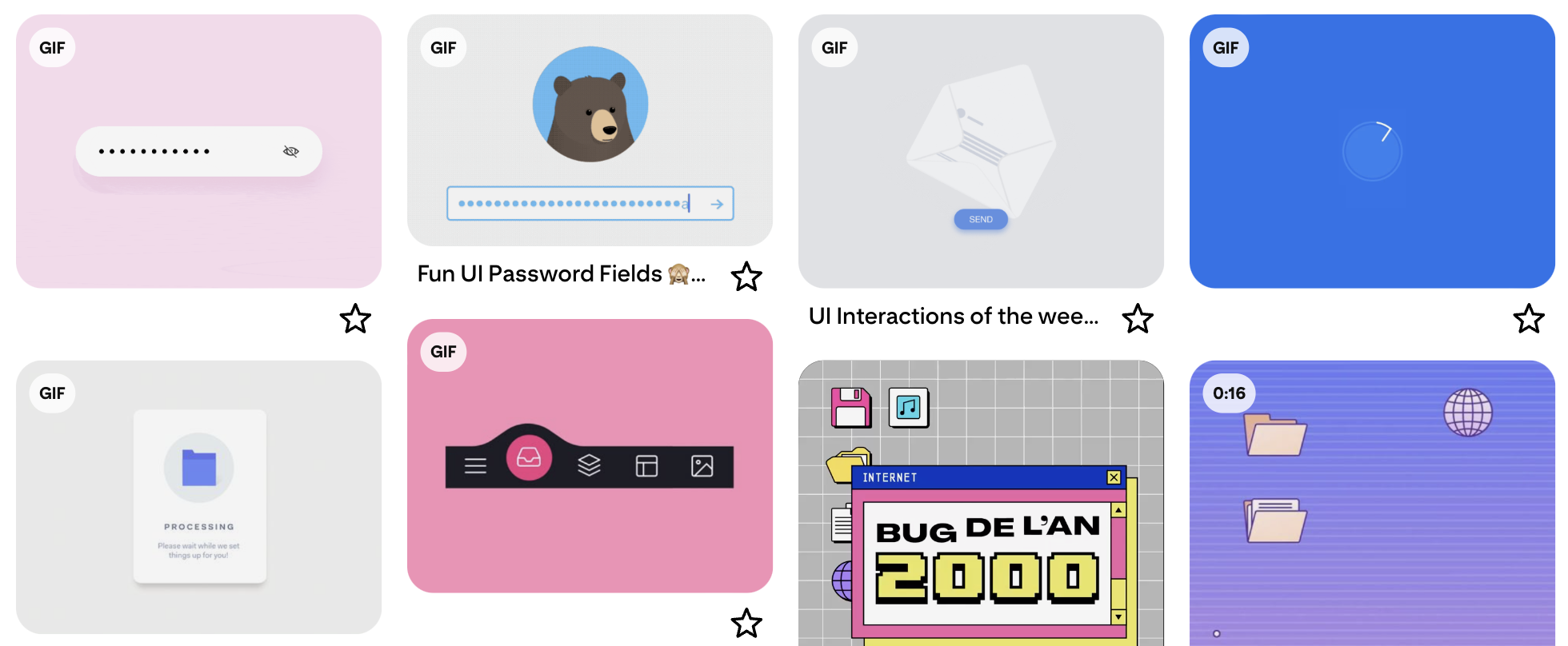
I researched several examples of UI animations to understand how small movements can enhance digital interactions. Many of the examples were subtle animations, such as navigation bars sliding left to right, download buttons reacting when clicked, and elements smoothly appearing or disappearing.
Two of the examples involved password interactions. One that stood out showed a bear character looking left and right as the password was typed. It was a fun yet simple animation that added personality while clearly communicating the interface’s function. I also liked examples where mouse clicks triggered elements to pop up or change state, which made the interaction feel more dynamic.
Some animations included morphing shapes, color changes, and hover or drag interactions. One example even incorporated images or video into the animation, which I thought was very interesting because it expanded the idea of what UI animation can include.
UI Error Animation
Full Screen with Audio & Loop
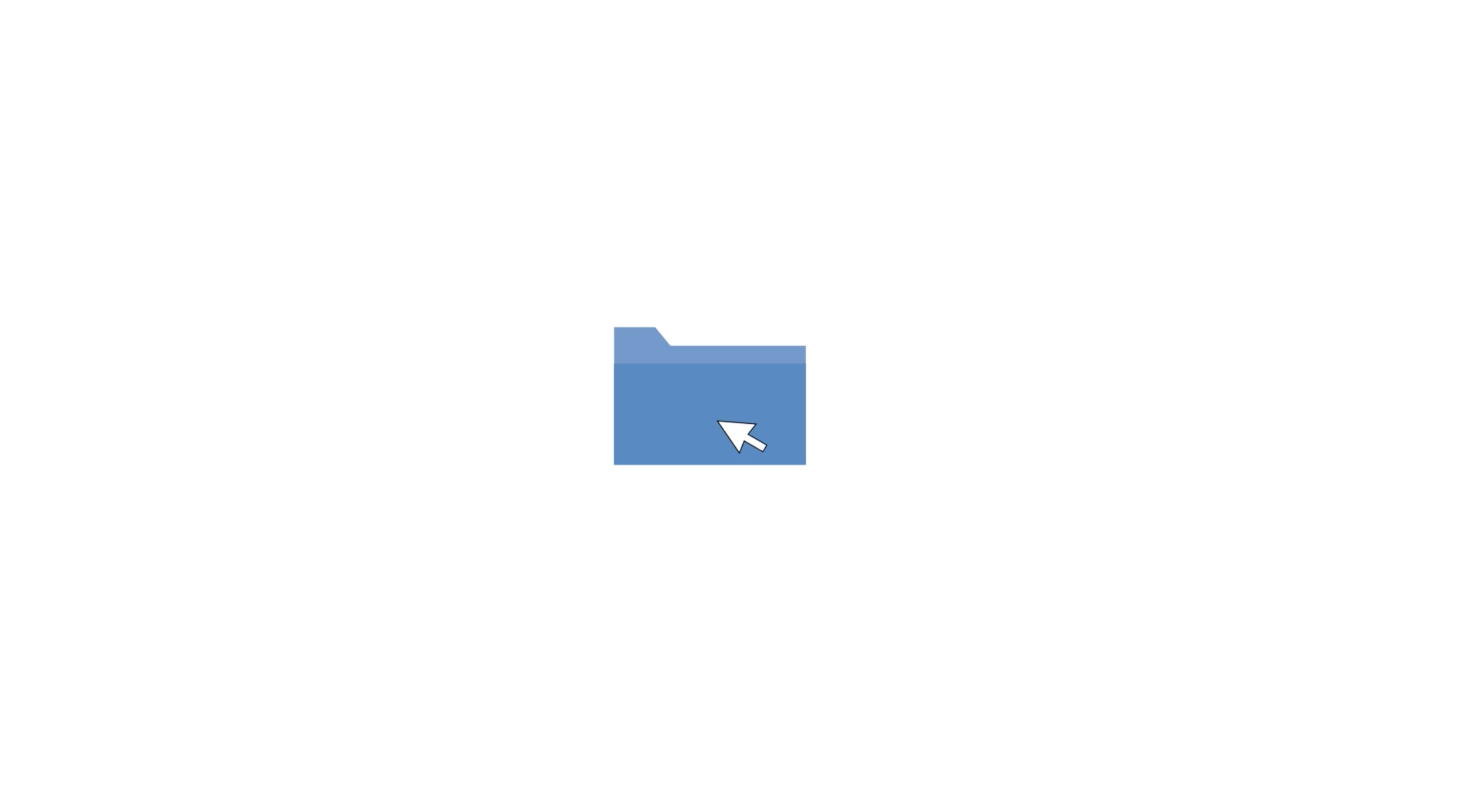
In my animation, a cursor clicks on a folder, causing it to disappear and reappear in a different location. This interaction happens three times. On the final click, the folder opens, but nothing appears inside, creating a moment of anticipation for the viewer. While creating the animation, I wanted the sequence to feel more complete, so I added a circle progress bar at the beginning with the word “Loading” displayed above it. At the end of the animation, an error message appears. The message then changes back to “Loading,” creating a smooth loop.
I created the folder and cursor graphics in Adobe Illustrator and then imported them into After Effects for animation. The radial progress bar was built directly in After Effects. To animate the cursor, I used the pen tool along with Position and Rotate keyframes to guide its movement across the screen. I also synced the motion with a mouse-click sound effect to make the interaction feel more realistic.
For visual interest, both the cursor and the error message briefly blink by appearing and disappearing. This effect reinforces the idea that the interface is still processing or encountering an issue, which connects back to the overall concept of folders moving, the loading bar, and the error message eventually appearing at the end.

Hi, I’m Allison!
I am a graphic and interactive designer, ready to craft strategy-driven and engaging designs for you now!